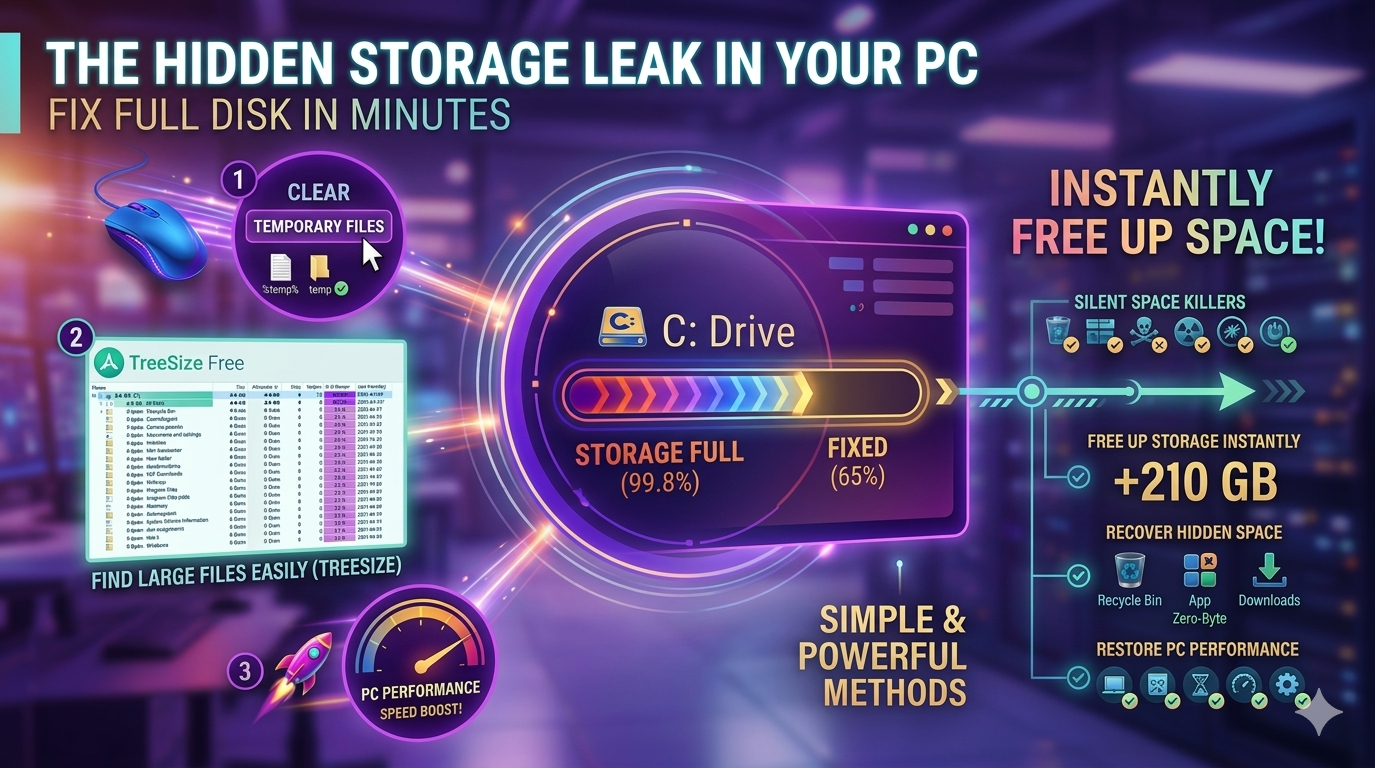
If you are a regular user of a PC or a laptop‚ you might already have experienced storage full errors․
Available storage is continually dwindling‚ whether or not files are deleted․ The system becomes slower and applications may fail‚ and it will not install additional programs or updates․
Some users incorrectly believe large files are the only thing taking up space on their disk․ Temporary files and poorly organized data can quietly take up storage․
In this guide‚ you will learn simple and powerful methods to:
Free up storage instantly
Find large files easily
Improve your PC performance
Why Your Storage Keeps Filling Up
Your computer constantly creates background files such as:
- Temporary files
- Cache files
- System logs
- Update leftovers
These files are not important after use, but they remain in your system and gradually take up space.
Over time, this leads to a full storage warning, even if you didn’t download many files.
Method 1: Clear Temporary Files (Quick Fix)
This is the fastest and easiest method to free storage space.
Temporary files are created by the system and applications for short-term use. Once they are no longer needed, they can be safely deleted.
Step 1: Open Run Command
Press:
Windows Key + R
This will open the Run dialog box.
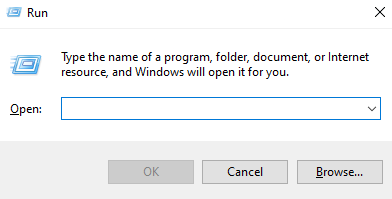
Step 2: Enter Command
Type:
temp
Then press Enter.
A folder will open containing many temporary files.
Step 3: Delete Files
- Press Ctrl + A (Select all files)
- Press Delete
Some files may not delete — skip those files.
Step 4: Repeat Using %temp%
Again press Windows + R and type:
%temp%
Press Enter and repeat the deletion process.
Result
After completing this method:
- Storage space increases instantly
- System becomes faster
- Performance improves noticeably
This is one of the most effective ways to clean your PC quickly.
Method 2: Find Large Files Easily
After clearing temporary files, the next step is to identify large files.
Manually searching for large files is difficult because:
- Files are stored in different locations
- You don’t know which file is large
- Checking each file takes a lot of time
Smart Solution: Use TreeSize
Instead of manual searching, you can use TreeSize.
TreeSize helps you:
- See folder sizes clearly
- Identify large files instantly
- Locate files easily
Step 1: Install TreeSize
- Open your browser
- Search for “TreeSize download”
- Install the software ( click here )
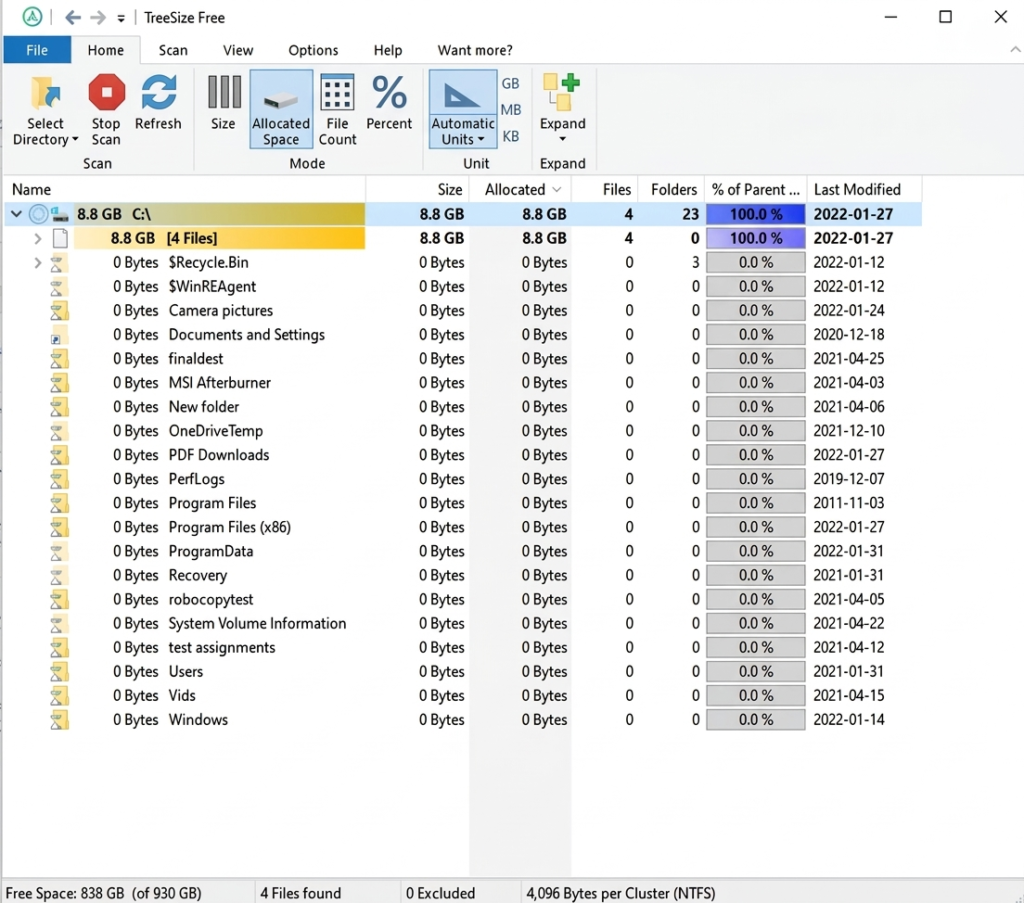
Step 2: Scan Your Drive
- Open TreeSize
- Select your C Drive
The tool will scan your storage and display usage details.
Step 3: Identify Large Files
You will see:
- Largest folders at the top
- File sizes in MB or GB
- Detailed file structure
This makes it easy to understand where your storage is being used.
Step 4: Delete Unwanted Files
- Open large folders
- Check unnecessary files
- Delete directly from TreeSize
After Using Treesize
- You can find hidden large files easily
- Free up significant storage space
- Save time compared to manual searching
The Silent Space Killers You’re Probably Ignoring
Most users focus only on deleting files, but these hidden habits quietly consume your storage over time. Fixing them can keep your PC clean and fast permanently.
1. The Forgotten Trash Trap
Even after deleting files, they don’t actually leave your system.
Files stored in the Recycle Bin still occupy space until you remove them permanently.
👉 Make it a habit to empty your Recycle Bin regularly to recover lost storage.
2. The App Graveyard Problem
Many applications sit unused on your PC but continue to consume storage.
Over time, this becomes a major space issue.
👉 Go to:
Settings → Apps → Installed Apps
and uninstall programs you no longer use.
3. The Hidden Downloads Dump
Your Downloads folder is one of the most ignored storage-heavy locations.
Old files, installers, videos, and documents often stay there forever.
👉 Check your Downloads folder weekly and delete unnecessary files.
4. The Cache Reset Trick
Your system stores temporary cache to run faster, but too much cache can slow it down.
A simple restart can clear this automatically.
👉 Restart your PC at least once in a while to refresh system performance.
5. The Smart Storage Shift
Keeping large files on your main drive fills it quickly.
Instead of storing everything internally:
👉 Move large files to:
- External hard drives
- Cloud storage
This keeps your main drive clean and improves system speed.

Leave a Reply