📑 Table of Contents
| No. | Section Title |
|---|---|
| 01 | Hidden System Settings That Secretly Drain Battery (And How to Fix Them Manually) |
| 02 | Full Signal But Lagging? Manual Network Stability Fixes Inside iPhone Settings |
| 03 | Which iPhone Models Face These Issues More Often? |
| 04 | Does the Final iOS Update Really Fix Network & Battery Drain on Older Models? |
🔋 Hidden System Settings That Secretly Drain Battery (And How to Fix Them Manually)
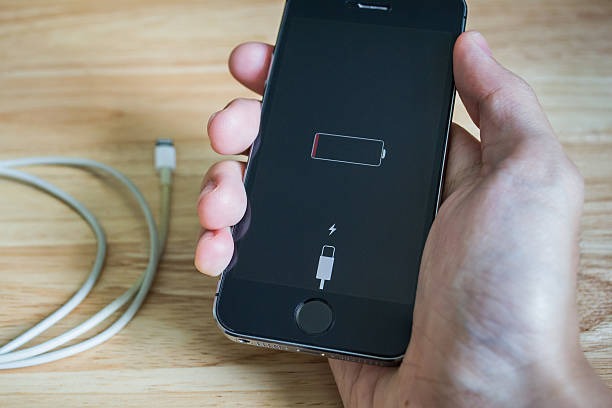
Most articles talk about “lower brightness” or “turn off Bluetooth.”
That’s basic.
Below are less discussed battery drain triggers inside iPhone and how to manually control them.
1️⃣ Modem Re-Negotiation Cycles
On models like iPhone 15 and iPhone 14, the modem constantly re-checks signal bands — even in strong coverage.
Each scan wakes the baseband briefly.
🔧 Fix: Switch 5G Auto → LTE in unstable areas.
2️⃣ Silent Push Micro-Wakes
Apps trigger tiny background activations (not full refreshes) to validate data.
These micro-wakes happen dozens of times daily.
🔧 Fix: Disable notifications & background refresh for non-essential apps.
3️⃣ Wi-Fi ↔ LTE Path Switching
With Wi-Fi Assist ON, iPhone constantly compares network paths.
That dual radio monitoring increases drain.
🔧 Fix: Turn OFF Wi-Fi Assist in mixed signal zones.
4️⃣ Hidden System Telemetry Loops
Motion calibration, analytics uploads, and location checks run quietly in the background.
Small tasks — continuous impact.
🔧 Fix: Disable Analytics, Location-Based Ads, and unused Motion tracking.
📡 Full Signal But Lagging? Manual Network Stability Fixes Inside iPhone Settings
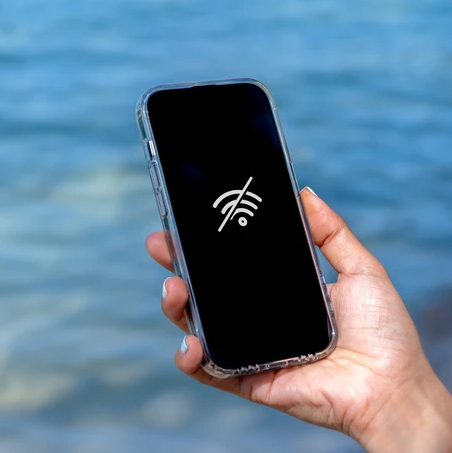
Many users see full signal bars on iPhone but still face slow internet or lag.
The truth is:
Signal strength ≠ Data stability.
Below are rare manual fixes inside iPhone settings that most people never try.
1️⃣ Lock a Stable Network Mode
iPhone constantly switches between LTE and 5G in Auto mode, causing small latency spikes.
🔧 Fix:
Settings → Cellular → Voice & Data → Switch 5G Auto → LTE (or 5G On if stable).
👉 Stable band > automatic switching.
2️⃣ Refresh Carrier Handshake (Without Full Reset)
Sometimes lag comes from outdated carrier negotiation — not weak signal.
🔧 Fix:
Settings → General → About → Wait for Carrier Update popup and install if available.
👉 Refreshes modem communication without deleting data.
3️⃣ Turn Off Private Relay for Speed Testing
Private Relay reroutes traffic through encrypted servers, increasing DNS latency in some regions.
🔧 Fix:
Settings → iCloud → Private Relay → Turn OFF temporarily.
👉 Encryption routing can cause delay even with full bars.
4️⃣ Airplane Mode Baseband Refresh
The modem may stay locked to a congested band even in strong coverage.
🔧 Fix:
Turn ON Airplane Mode (20 seconds) → Turn OFF.
👉 Forces fresh tower registration and cleaner band selection.
📱 Which iPhone Models Face These Issues More Often?
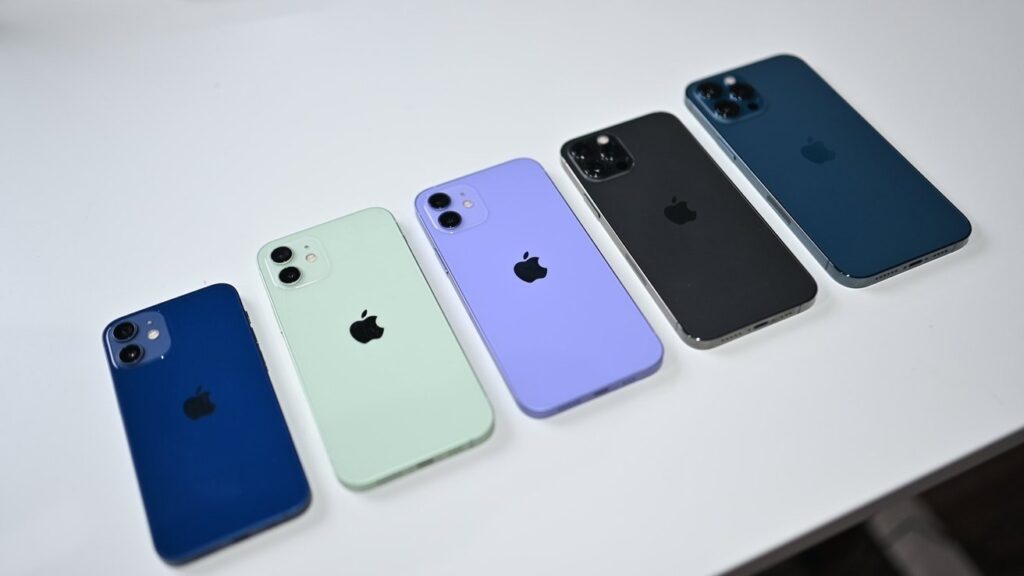
These are not generic claims you’ll find in regular blogs — this is based on hardware, modem design, and frequency band behavior that most sites never explain.
1️⃣ First-Gen 5G Models
Devices like iPhone 12 and iPhone 12 Pro use early 5G modems with aggressive band switching and weaker aggregation.
👉 Result: Micro latency spikes even with full signal.
🔧 Fix:
Switch 5G Auto → LTE in unstable zones to reduce band hopping.
2️⃣ Intel-Modem Generation
Models such as iPhone XS and iPhone XR re-scan bands more often and delay handovers.
👉 Result: Stable bars, but occasional packet lag.
🔧 Fix:
Use Airplane Mode refresh or update carrier settings to reset band negotiation.
3️⃣ Pro Max Thermal Trade-Off
Large models like iPhone 14 Pro Max and iPhone 15 Pro Max have strong antennas, but heat can slightly throttle modem speed.
👉 Result: Good signal, reduced throughput under load.
🔧 Fix:
Avoid heavy usage while charging and keep the device cool for stable performance.
4️⃣ Base / Limited Band Models
Phones like iPhone SE (3rd generation) support fewer LTE/5G bands, limiting aggregation flexibility.
👉 Result: Slower handovers despite strong coverage.
🔧 Fix:
Manually select LTE in congested areas and keep iOS updated for carrier optimizations.
🔄 Does the Final iOS Update Really Fix Network & Battery Drain on Older Models?

Short answer: Partially — but not completely.
Most people think the final iOS version magically fixes everything.
The reality is more technical.
1️⃣ Modem Optimization — But Hardware Limited
Final iOS updates improve carrier profiles, baseband tuning, and reduce aggressive band scanning.
👉 This may slightly improve network stability.
But software cannot add new band support or upgrade antenna hardware.
Reality: iOS can refine performance — not change physical modem limits.
2️⃣ Background Power Adjustments
Final versions often reduce heavy background indexing and optimize idle power states.
👉 Battery life may improve after 1–2 days of calibration.
However, peak performance may be slightly limited to protect battery health.
3️⃣ Temporary Post-Update Drain
After updating, the system re-indexes data, rebuilds caches, and optimizes apps.
👉 Battery drain for 24–72 hours is normal and temporary.
4️⃣ What iOS Cannot Repair
Updates cannot fix hardware issues like:
• Weak antenna design
• Limited band aggregation
• Aging battery condition
• Network tower congestion
👉 Software can reduce impact — but not eliminate hardware limits.

Leave a Reply