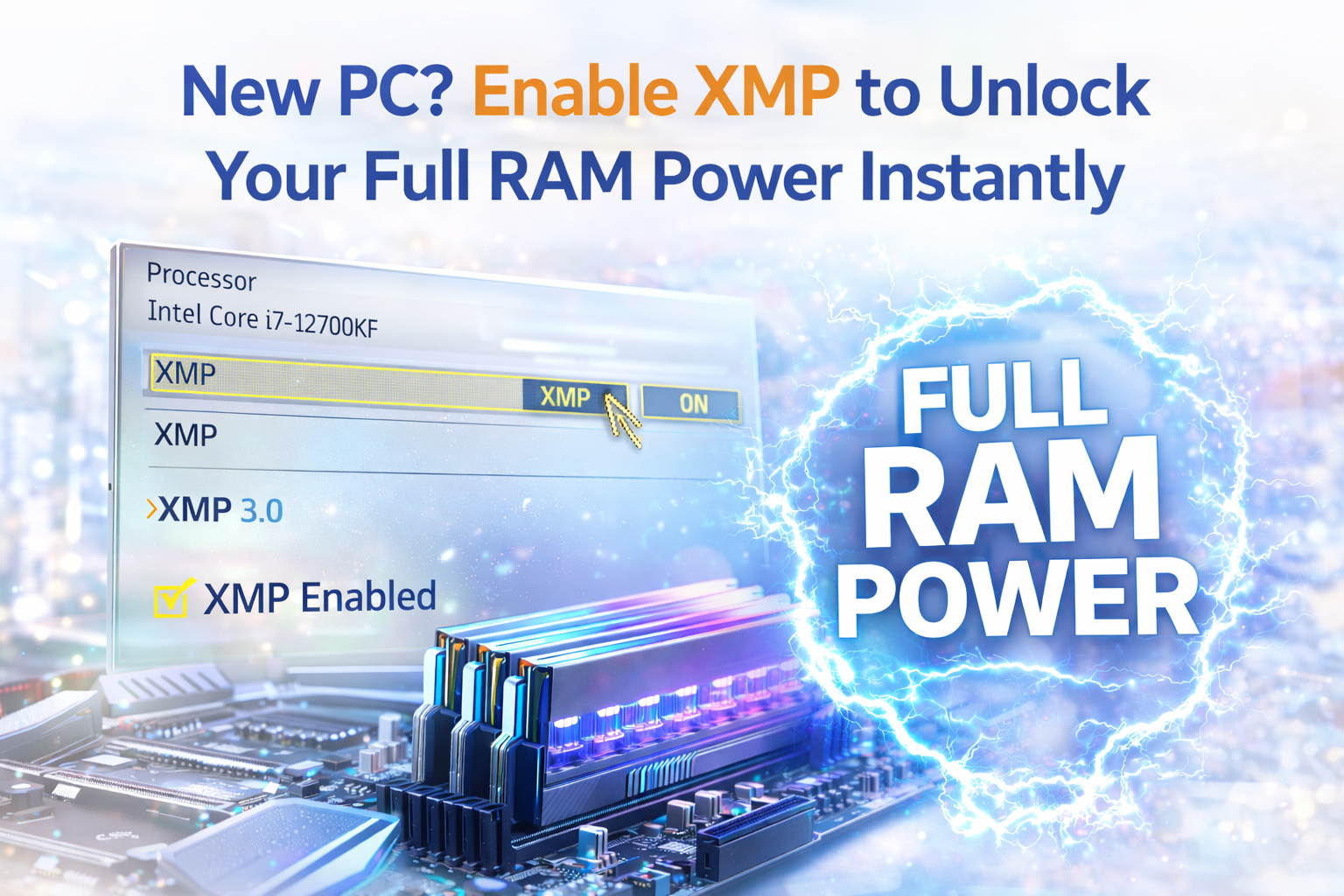
Buying a brand-new PC is one of the most exciting tech moments. Whether you built it yourself or bought a pre-built system, you expect blazing-fast boot times, smooth gaming performance, responsive multitasking, and powerful productivity.
But here’s something most users don’t realize:
👉 Your RAM is not running at its full advertised speed by default.
Yes — even if you purchased high-performance memory rated at 3200MHz, 3600MHz, or higher, your system may be running it at a much lower base frequency like 2133MHz or 2400MHz.
That means you are not getting the full performance you paid for.
The good news? Fixing this takes less than a minute.
What Is XMP?
XMP (Extreme Memory Profile) is a technology developed by Intel that allows your RAM to run at its advertised speed instead of the default safe speed set by the motherboard BIOS.
For users running systems powered by AMD processors, the equivalent technology is called EXPO (Extended Profiles for Overclocking).
Both technologies do the same thing:
They unlock the performance profile already built into your RAM sticks.
When RAM manufacturers test memory modules, they store optimized speed, voltage, and timing settings inside the memory itself. However, motherboards do not automatically activate these performance profiles. Instead, they default to a conservative speed to ensure stability for all users.
That’s where XMP or EXPO comes in.
Why Is XMP Disabled by Default?
Motherboard manufacturers prioritize maximum compatibility and stability. Since different CPUs, RAM kits, and motherboards vary in quality and capability, systems boot at a guaranteed safe memory speed.
This “safe mode” ensures:
- The PC boots without issues
- There are no instability complaints
- Even entry-level CPUs remain stable
But there’s a trade-off.
Running RAM at default speeds can make your system feel:
- Slightly slower than expected
- Less responsive during heavy multitasking
- Bottlenecked in gaming
- Slower in rendering and editing workflows
In simple terms, you’re leaving free performance on the table.
What Happens When You Enable XMP?
When you enable XMP (or EXPO), your motherboard applies:
- Higher memory frequency (e.g., 3600MHz instead of 2133MHz)
- Optimized timings
- Correct voltage settings
And all of this happens automatically — no manual tuning required.
You are not “overclocking dangerously.” You are simply activating the rated performance profile designed by the RAM manufacturer.
Real-World Performance Improvements
🎮 Gaming Performance
In modern games, especially CPU-heavy titles, RAM speed can impact frame stability.
After enabling XMP, you may notice:
- Higher minimum FPS
- Reduced micro-stutters
- More stable frame pacing
- Smoother open-world gameplay
Competitive gamers benefit even more because consistent frame times matter just as much as high FPS.
🎬 Video Editing & Content Creation
If you edit videos, work in Photoshop, or use 3D rendering tools, memory bandwidth plays a major role.
With XMP enabled:
- Timeline scrubbing becomes smoother
- Preview rendering improves
- Large files load faster
- Export speeds may slightly increase
For creators working with 4K footage or large RAW images, this can noticeably improve workflow fluidity.
🖥 Multitasking & Productivity
When running multiple applications — browser tabs, design software, background apps — faster RAM helps maintain responsiveness.
You may experience:
- Faster app switching
- Less lag under heavy load
- Improved overall system snappiness
While it won’t double your performance, it eliminates unnecessary bottlenecks.
How to Enable XMP (Step-by-Step Guide)
The process is very simple and takes less than a minute.
Step 1: Restart Your PC
Restart your computer completely.
Step 2: Enter BIOS
While your system is booting, repeatedly press:
- Delete (DEL) key (most common)
- Or F2 on certain motherboards
This will open the BIOS/UEFI menu.
Step 3: Locate XMP or EXPO
Inside BIOS, look for:
- XMP (if using Intel platform)
- EXPO (if using AMD platform)
It is usually found under:
- Advanced Settings
- AI Tweaker
- Overclocking
- Memory Settings
Step 4: Enable It
Change the setting from:
Disabled → Enabled
If multiple profiles are available, choose Profile 1 (usually the manufacturer-tested stable profile).
Step 5: Save & Exit
Press F10 (or follow the Save & Exit option), confirm changes, and reboot.
That’s it.
Your RAM is now running at its full advertised speed.
Intel XMP vs AMD EXPO – What’s the Difference?
| Feature | Intel | AMD |
|---|---|---|
| Technology Name | XMP | EXPO |
| Purpose | Unlock RAM speed | Unlock RAM speed |
| Location | BIOS | BIOS |
| Safe to Enable? | Yes (if RAM supports it) | Yes (if RAM supports it) |
Both technologies work almost identically. They activate predefined memory profiles stored in the RAM modules.
Is XMP Safe?
Yes — if your RAM and motherboard support it.
You are not manually pushing unsafe voltages. You are simply enabling manufacturer-tested settings.
However, keep these points in mind:
- Always use compatible RAM for your motherboard.
- Update your BIOS if you experience instability.
- If your system fails to boot after enabling, reset BIOS and try a lower profile.
In 95% of cases, XMP works instantly without issues.
Important Things to Check Before Enabling
✔ Make sure your RAM kit supports XMP or EXPO
✔ Confirm your motherboard supports memory overclocking
✔ Check CPU compatibility for high-speed RAM
✔ Update BIOS if your board is older
✔ Save changes properly before exiting BIOS
Skipping compatibility checks may cause boot loops or crashes, although it’s rare with modern systems.
Does XMP Void Warranty?
In most cases, no.
RAM manufacturers design and advertise their memory kits specifically for XMP/EXPO usage. Enabling it does not count as manual overclocking.
However, always check your motherboard manufacturer’s policy if you’re concerned.
Why Many PC Users Miss This
Most people:
- Build a PC
- Install Windows
- Start gaming
- Never enter BIOS again
Pre-built systems also often ship with XMP disabled to ensure maximum stability during shipping.
That means thousands of users unknowingly run their RAM below its potential for years.
Final Thoughts
If you bought high-speed RAM, you paid for performance — so you should use it.
Enabling XMP or EXPO is:
- Fast
- Safe
- Simple
- Free performance boost
It won’t transform your PC into a supercomputer overnight, but it ensures you’re getting the full value from your hardware.
So if you recently built or purchased a new PC, take one minute today, enter BIOS, and unlock the performance already sitting inside your system.
Your RAM has more power — you just need to switch it on. 🚀

Leave a Reply