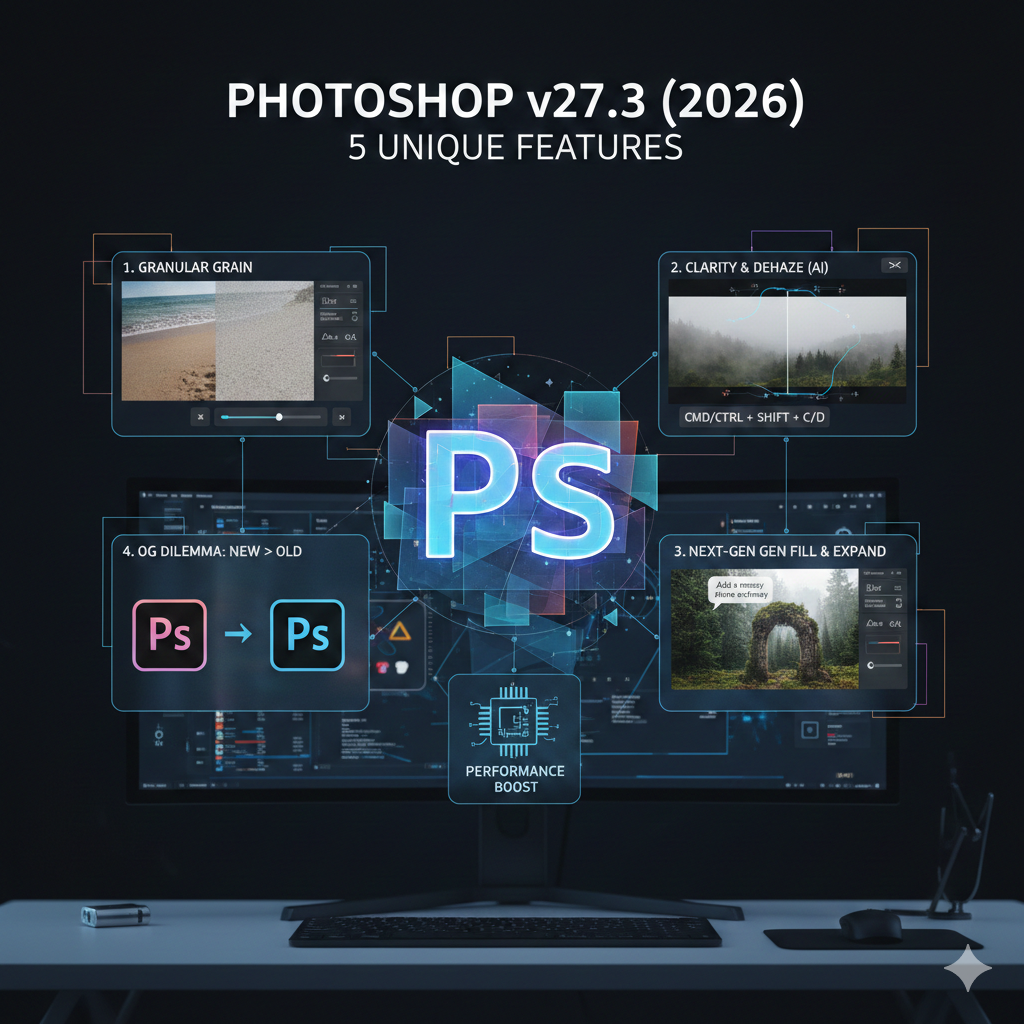
The 2026 update of Photoshop v27.3 isn’t just another performance patch — it’s a workflow evolution. While most headlines focus on AI buzzwords, this version quietly introduces deeper refinements that dramatically improve texture control, smart automation, and professional efficiency.
If you’re a designer, photographer, or digital artist, these five features may completely change how you work — especially in large, multi-layer, high-resolution projects.
Let’s break them down in detail 👇
1️⃣ Grain Adjustment – Seamless Texture Matching
The Old Problem: Inconsistent Film Grain
Adding grain has always been tricky. When working with multiple layers — composites, overlays, retouching masks — manually adding grain often created mismatched textures.
You’d notice:
- Grain intensity differences between layers
- Unnatural texture blending
- Overprocessed skin tones
- Performance slowdowns on 4K or 8K projects
Matching grain manually required layer duplication, blending modes, noise filters, and opacity tweaks. It was time-consuming and rarely perfect.
What’s New in v27.3?
Grain Adjustment in v27.3 introduces intelligent texture analysis.
Instead of applying generic noise, Photoshop now:
- Scans existing project texture patterns
- Detects ISO simulation characteristics
- Matches grain size, luminance, and distribution
- Syncs texture across active layers automatically
The biggest hidden upgrade? It leverages enhanced GPU acceleration, making it smoother on large RAW or layered PSD files.
Even high-resolution editorial projects now maintain real-time preview performance.
How to Use It
Shortcut:
- Press G to activate the Grain tool
- Press Ctrl + Shift + G (Windows) or Cmd + Shift + G (Mac) to sync grain with active layers
You can fine-tune intensity, softness, and blending response inside the updated Grain panel.
Why It Matters
This isn’t just cosmetic. Consistent grain:
- Makes composites look authentic
- Improves cinematic grading
- Blends stock and custom photography seamlessly
- Elevates portfolio-level retouching
For photographers working on wedding albums, fashion campaigns, or cinematic edits — this feature eliminates hours of micro-adjustments.
2️⃣ Clarity & Dehaze – AI-Powered Quick Enhancement
The Old Problem: Multi-Step Correction
Removing haze or flatness used to involve:
- Curves adjustments
- Contrast tweaking
- Selective masking
- Camera Raw filter layering
The process worked — but it slowed creative flow.
The Upgrade in v27.3
Photoshop now integrates AI-driven Clarity & Dehaze directly into the core editing engine.
The system analyzes:
- Depth layers
- Atmospheric distortion
- Edge contrast
- Light diffusion
And applies intelligent corrections — even across multiple layers.
Unlike previous versions, it now works natively on RAW files without requiring separate Camera Raw adjustments.
Shortcuts
- Press Shift + H to toggle Clarity/Dehaze
- Press Alt + Shift + H (Windows) or Option + Shift + H (Mac) for AI automatic adjustment
You can still refine manually after AI enhancement.
Real-World Benefits
- Landscape photographers recover sky detail instantly
- Urban photographers remove smog haze cleanly
- Portrait artists enhance depth without over-sharpening
The AI avoids halo artifacts — a common issue in earlier manual workflows.
For social media creators or fast-turnaround clients, this dramatically reduces edit time.
3️⃣ New Gen Fill & Expand – Intelligent Content Awareness
The Old Limitation: Content-Aware Artifacts
Traditional content-aware fill worked well for simple backgrounds. But complex patterns — like:
- Fabric textures
- Repeating architectural elements
- Dense foliage
- Abstract artwork
…often produced distorted or blurry patches.
Editors had to manually clone and patch.
What Gen Fill & Expand Changes
The new system predicts surrounding structures using contextual pattern recognition.
It doesn’t just copy nearby pixels.
It understands:
- Directional texture flow
- Light gradients
- Pattern repetition rules
- Structural symmetry
The “Expand” function intelligently grows a canvas while maintaining visual continuity.
Even abstract designs remain consistent.
How to Activate
- Press Shift + F to launch New Gen Fill
- Hold Ctrl (Cmd on Mac) + Click to expand selection intelligently
You’ll see a smart preview before finalizing.
Why It’s Revolutionary
For product photographers removing unwanted elements…
For designers extending backgrounds…
For YouTube thumbnail creators reframing compositions…
This feature feels almost generative — but controlled.
It significantly reduces manual cleanup work.
4️⃣ Legacy Workflow Mode – OG User Friendly
The Concern: UI Fatigue
Long-time users often hesitate to upgrade.
Why?
- Muscle memory disruption
- Toolbar layout changes
- Panel repositioning
- Shortcut inconsistencies
Many professionals stuck to older versions like v22 or v23 for workflow stability.
The Solution in v27.3
Legacy Workflow Mode recreates classic behavior while keeping modern AI improvements active behind the scenes.
You get:
- Classic panel placement
- Traditional blending logic
- Old-style toolbar structure
- Familiar shortcut mapping
But still enjoy improved rendering performance and AI enhancements.
Shortcut
- Press Alt + L (Windows) or Option + L (Mac) to toggle Legacy Mode
Older shortcuts like:
Ctrl + Alt + Shift + E (Merge Visible to New Layer)
…continue working seamlessly.
Why This Is Smart
It reduces transition friction.
Design studios can upgrade without retraining teams.
Freelancers can adopt AI tools without abandoning muscle memory.
It bridges generations of users — from veterans to AI-native creators.
5️⃣ AI Layer Suggestion & Auto-Organize – First-of-Its-Kind
The Pain Point: Layer Chaos
Complex projects easily hit:
- 100+ layers
- Random layer names
- Unorganized adjustment stacks
- Clipping mask confusion
Manually grouping and renaming layers wastes time.
The Breakthrough
Photoshop v27.3 introduces AI-powered layer intelligence.
It can:
- Detect similar layer content
- Group related elements
- Auto-rename layers contextually
- Suggest relevant adjustment layers
- Highlight redundant layers
For example:
If multiple brightness adjustments exist, AI suggests consolidation.
If layers contain similar color grading, it groups them automatically.
Shortcuts
- Press Shift + A to activate AI Layer Suggestion
- Press Ctrl + Alt + A (Windows) or Cmd + Option + A (Mac) to auto-organize all layers instantly
You can approve or reject suggested changes before applying.
Why It’s a Workflow Revolution
For:
- UI/UX designers
- Digital painters
- Photo compositors
- Marketing creatives
This feature saves massive time.
It transforms layer management from manual sorting to intelligent automation.
No previous version of Photoshop offered this depth of AI organizational control.
💡 Pro Tip: Combine Grain Adjustment + Auto-Organize
In multi-layer cinematic projects:
- Use Auto-Organize to clean your layer structure
- Apply Grain Adjustment synced across final output layers
The result:
- Clean structure
- Consistent texture
- Faster rendering
- Professional output
This combination alone can cut editing time by 20–30% on large compositions.
Final Thoughts
Photoshop v27.3 isn’t flashy — it’s powerful.
Instead of overwhelming users with gimmicks, it focuses on:
- Intelligent automation
- Seamless texture realism
- Smarter content prediction
- Workflow preservation
- AI-based organization
These features may not all appear dramatic at first glance.
But in daily professional use, they:
- Reduce repetitive tasks
- Improve consistency
- Increase editing speed
- Maintain creative flow
For professionals who rely on Photoshop daily, this update feels less like a patch — and more like a quiet productivity revolution.

Leave a Reply