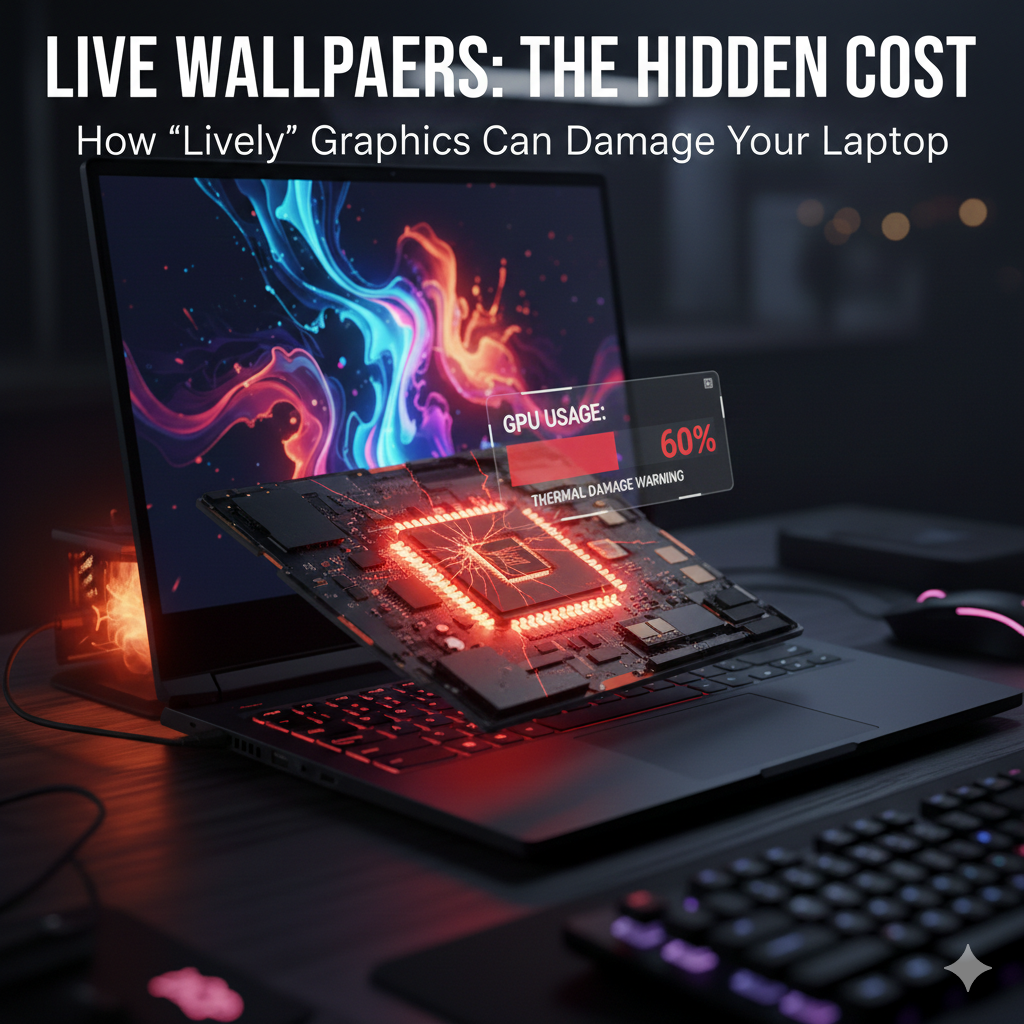
Animated wallpapers look stunning. A moving cyberpunk city, floating particles, space galaxies, live weather effects — they make your desktop feel futuristic and alive.
One of the most popular apps people download from the Microsoft Store for this purpose is Lively Wallpaper.
It’s free, customizable, and supports everything from video backgrounds to interactive web-based wallpapers.
But here’s the question most users never ask:
👉 Is your animated wallpaper silently consuming your GPU power — and hurting performance over time?
Let’s break down the truth in detail.
What Actually Happens When You Use Lively Wallpaper?
When you install and enable Lively Wallpaper, it doesn’t just “set” a background like a normal image file.
Instead, it:
- Continuously renders animation
- Uses GPU acceleration
- Runs processes in the background
- Keeps visual effects active in real time
Unlike static wallpapers (which use almost zero performance once loaded), animated wallpapers behave like a lightweight video or mini game engine running behind your icons.
That means your graphics processor is always working — even when you’re not actively doing anything demanding.
In some user cases, GPU usage has been observed rising between 40% to 60%, depending on:
- Wallpaper resolution (1080p vs 4K)
- Type of animation (video vs WebGL)
- System GPU power
- Multi-monitor setups
That’s a significant amount of graphics performance being used for something purely visual.
Why GPU Usage Matters
Your GPU (Graphics Processing Unit) is designed for:
- Gaming
- Video rendering
- 3D modeling
- Encoding/decoding media
- AI workloads
When an animated wallpaper constantly occupies GPU resources, it reduces the headroom available for demanding tasks.
Think of it like this:
Your GPU has 100% power capacity.
If wallpaper uses 50%, games and creative software only get the remaining 50%.
That can directly impact performance.
🎮 The Impact on Gamers
For gamers, this matters the most.
When you launch a modern AAA game, your GPU already runs near maximum capacity. Adding an animated wallpaper in the background can:
- Reduce FPS stability
- Cause micro-stutters
- Increase frame drops
- Raise GPU temperature
- Trigger louder fan noise
Even if Lively Wallpaper pauses automatically in fullscreen mode (which it can be configured to do), background processes may still remain partially active.
In competitive gaming, where every frame counts, even a small performance drop can matter.
💼 Productivity & Creative Work Impact
Gamers aren’t the only ones affected.
If you use your PC for:
- Video editing
- Graphic design
- 3D rendering
- Coding
- Heavy multitasking
Your GPU and CPU resources are already being utilized.
Animated wallpapers:
- Increase system load
- Consume VRAM
- Add background rendering tasks
- Raise power consumption
This may result in:
- Slower preview rendering
- Lag during timeline scrubbing
- Reduced responsiveness when switching applications
- Higher overall system heat
On laptops, the impact becomes even more noticeable.
🔋 Battery Life on Laptops
For laptop users, animated wallpapers are more problematic.
Why?
Because:
- The GPU stays active constantly
- Power draw increases
- Heat output rises
- Fans spin more frequently
That leads to:
- Faster battery drain
- Reduced battery health over time
- Louder cooling noise
A static wallpaper consumes virtually zero ongoing energy.
An animated one behaves like a video player running 24/7.
The Bigger Concern: Long-Term Hardware Stress
Now let’s address the dramatic question:
Is Lively Wallpaper “killing” your GPU?
Short answer:
Not immediately.
Long answer:
It can contribute to long-term thermal stress if poorly managed.
🖥️ Desktop PC Users
If you have a dedicated graphics card:
- RTX series
- Radeon GPUs
- Other discrete GPUs
These are designed to handle sustained loads.
However, constant high idle usage can:
- Increase long-term wear
- Raise operating temperatures
- Reduce cooling efficiency
- Shorten overall component lifespan
The good news?
Desktop GPUs can be replaced.
The bad news?
High temperatures over long periods still reduce hardware longevity.
💻 Laptop Users (Higher Risk)
Most laptops use:
- Integrated graphics built into the CPU
or - Shared thermal cooling systems
This means:
- You cannot replace the GPU separately
- Heat affects both CPU and GPU
- The motherboard absorbs prolonged thermal stress
In worst-case scenarios:
- GPU failure = motherboard replacement
- Repairs become expensive
- Entire laptop lifespan shortens
Continuous unnecessary GPU usage — even for aesthetic reasons — increases internal heat cycles.
Heat is the real enemy of electronics.
Does It Always Use 40–60% GPU?
Not necessarily.
Usage depends on:
- Wallpaper type
- Resolution
- Frame rate
- Hardware capability
For example:
- A simple 1080p looped video may use 5–15% GPU
- A 4K WebGL interactive wallpaper can spike much higher
- Multi-monitor setups multiply resource usage
Users with powerful GPUs might not notice performance issues immediately.
Users with entry-level GPUs might see a clear impact.
When Is It Actually Safe?
Animated wallpapers are generally safe if:
- You use low-resolution animations
- You enable auto-pause in fullscreen
- Your GPU temps stay within safe limits
- You monitor usage regularly
The danger isn’t instant damage.
The risk is prolonged unnecessary load.
How to Monitor GPU Usage
You can check GPU usage easily:
- Open Task Manager
- Go to Performance tab
- Click GPU
- Observe usage percentage and temperature
If idle GPU usage is unusually high with only wallpaper active, that’s a red flag.
Smart Ways to Use Animated Wallpapers Safely
If you love aesthetics but care about performance, follow these tips:
✔ Lower animation resolution
✔ Reduce frame rate (30 FPS instead of 60 FPS)
✔ Disable 4K wallpapers
✔ Enable “Pause when fullscreen”
✔ Disable startup auto-launch
✔ Monitor temperatures regularly
✔ Use static wallpaper while gaming
Balancing visuals with performance is key.
When Should You Avoid It Completely?
You should strongly consider switching to static wallpapers if:
- You use a low-end GPU
- Your laptop overheats easily
- You play competitive games
- Your battery life is already weak
- You experience unexplained system lag
A wallpaper is cosmetic.
Performance stability is essential.
The Real Truth
Is Lively Wallpaper secretly killing your GPU?
No — not instantly.
But it can:
- Increase constant GPU load
- Raise system temperatures
- Shorten hardware lifespan over years
- Reduce performance under heavy workloads
The real issue isn’t the software itself.
It’s running unnecessary GPU-intensive visuals 24/7 without monitoring impact.
Final Thoughts
Animated wallpapers look incredible. They personalize your system and make your desktop feel premium.
But behind that beauty is continuous rendering — and continuous rendering means resource consumption.
For powerful desktops with good cooling, the impact may be minimal.
For laptops and mid-range systems, the impact can be noticeable — especially over long periods.
The key takeaway?
Aesthetic upgrades should never compromise performance stability.
If visuals matter more to you, optimize settings wisely.
If performance matters more than style, a clean static wallpaper might be the smartest choice.
Because at the end of the day, your GPU was built to run games, render videos, and power creative workloads — not just animate your desktop.

Leave a Reply