Whether you just bought a brand-new iPhone or you’ve been using one for years, chances are you’re not using it to its full potential.
Apple devices are known for their clean interface and simplicity. But beneath that simplicity lies a collection of powerful features designed to improve personalization, security, and productivity. The surprising part? Many users never explore them.
Your iPhone isn’t just a smartphone — it’s a highly customizable productivity tool packed with smart automation capabilities.
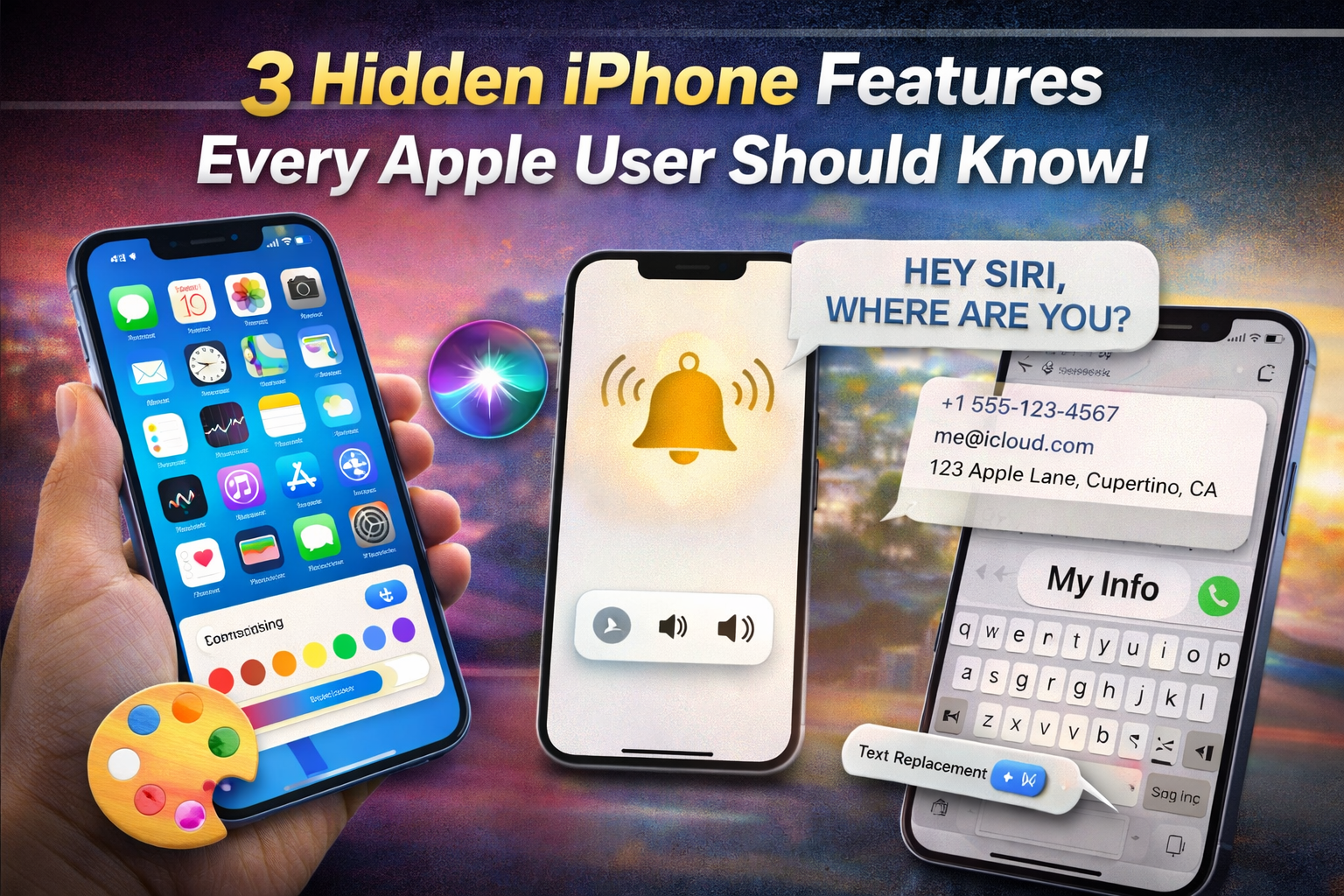
Here are three hidden iPhone features that can instantly upgrade your daily experience.
1️⃣ Customize App Icon Colors to Match Your Style 🎨
For years, iPhone users had limited control over how their Home Screen looked. Everything followed Apple’s default layout and color scheme.
But with recent iOS updates, Apple Inc. introduced built-in Home Screen customization — no third-party apps required.
You can now change the appearance of app icons using the built-in Tinted mode.
How to Customize App Icon Colors
Follow these steps:
• Go to your Home Screen
• Long press on an empty area
• Tap Edit
• Select Customize
• Choose the Tinted option
• Pick your preferred color shade
Your app icons will instantly adapt to the selected color theme.
Why This Feature Is More Powerful Than It Looks
At first glance, this might seem like a cosmetic feature. But personalization plays a huge psychological role in how we interact with our devices.
A customized interface can:
✔ Make your device feel more personal
✔ Reduce visual clutter
✔ Improve focus with minimal color palettes
✔ Match your phone case or aesthetic theme
You can choose neutral tones for a professional look or bold colors for a creative vibe.
Unlike older methods that required complicated Shortcuts-based icon replacements, this built-in feature keeps notifications and animations intact — meaning you don’t lose functionality for style.
For users who love aesthetic setups, this is one of the easiest upgrades available.
2️⃣ Find Your Lost iPhone Using Siri 🔊
We’ve all experienced that frustrating moment:
You know your phone is somewhere nearby — maybe under a pillow, inside a bag, or between couch cushions — but you can’t find it.
Instead of manually searching everywhere, you can use Siri to locate it instantly.
Simply say:
“Hey Siri, where are you?”
Your iPhone will respond audibly.
But here’s the hidden upgrade most users don’t know about.
You can create a custom Shortcut that forces your phone to play a loud sound at maximum volume — even if it’s on silent mode.
How to Set Up a Loud Find-Me Shortcut
- Open the Shortcuts app
- Tap Create New Shortcut
- Add Action → Set Volume (set to 100%)
- Add Action → Play Sound
- Save it with a voice trigger like “Find my phone”
Now whenever you say your custom phrase, your iPhone will:
• Raise the volume to maximum
• Play an audible sound
• Override silent mode
Why This Is Extremely Useful
✔ Works inside your home or office
✔ Saves time during busy mornings
✔ Avoids unnecessary stress
✔ No need to log into iCloud from another device
This trick is especially helpful if you frequently keep your phone on silent mode — which most users do.
It’s a simple automation, but it feels like a smart safety net built into your device.
3️⃣ Text Replacement for Faster Typing ⌨️
Typing the same information repeatedly is frustrating.
Your email address.
Your home address.
Your phone number.
Your business details.
Instead of rewriting them every time, your iPhone includes a powerful hidden productivity tool called Text Replacement.
How to Set Up Text Replacement
• Go to Settings
• Tap General → Keyboard
• Select Text Replacement
• Tap the + icon
• Enter your full phrase
• Assign a shortcut keyword
For example:
Shortcut: myinfo
Phrase: Your full contact details
Now, whenever you type “myinfo” in apps like Messages, Mail, or WhatsApp, your iPhone automatically expands it into your saved information.
Why This Feature Is a Game-Changer
This is particularly powerful for:
✔ Business users
✔ Students
✔ Customer support professionals
✔ Social media managers
You can create shortcuts for:
• Frequently used replies
• Meeting confirmations
• Email templates
• Banking details
• Website links
It dramatically reduces repetitive typing.
Even better — you can combine Text Replacement with voice typing. Speak the shortcut word, and it expands instantly.
Over weeks and months, this small feature can save hours of typing.
The Bigger Picture: Why These Features Matter
Individually, these features may seem small.
But together, they represent something bigger.
Your iOS device is designed around:
• Personalization
• Automation
• Efficiency
• Simplicity
Apple doesn’t always advertise these tools aggressively. Many are quietly embedded in settings menus.
Users who explore beyond the basics unlock a completely different experience.
Bonus Tip: Small Features, Big Impact
The real power of the iPhone lies in stacking small optimizations:
• Customize visuals for comfort
• Automate repetitive tasks
• Use voice commands intelligently
• Leverage built-in shortcuts
Over time, these small improvements compound.
Your phone becomes:
Less stressful
More efficient
More personal
More powerful
Without installing a single third-party app.
Final Thoughts ✨
Most iPhone users only scratch the surface of what their device can do.
These three hidden features:
• App Icon Color Customization
• Siri “Find My Phone” Shortcut Trick
• Text Replacement Auto-Fill
…can significantly upgrade your daily workflow.
The best part?
They’re already built into your iPhone.
No downloads.
No complex setup.
No extra cost.
Take five minutes today to explore these features — and you’ll instantly feel like you unlocked a smarter version of your own device.
Your iPhone is more powerful than you think.

Leave a Reply