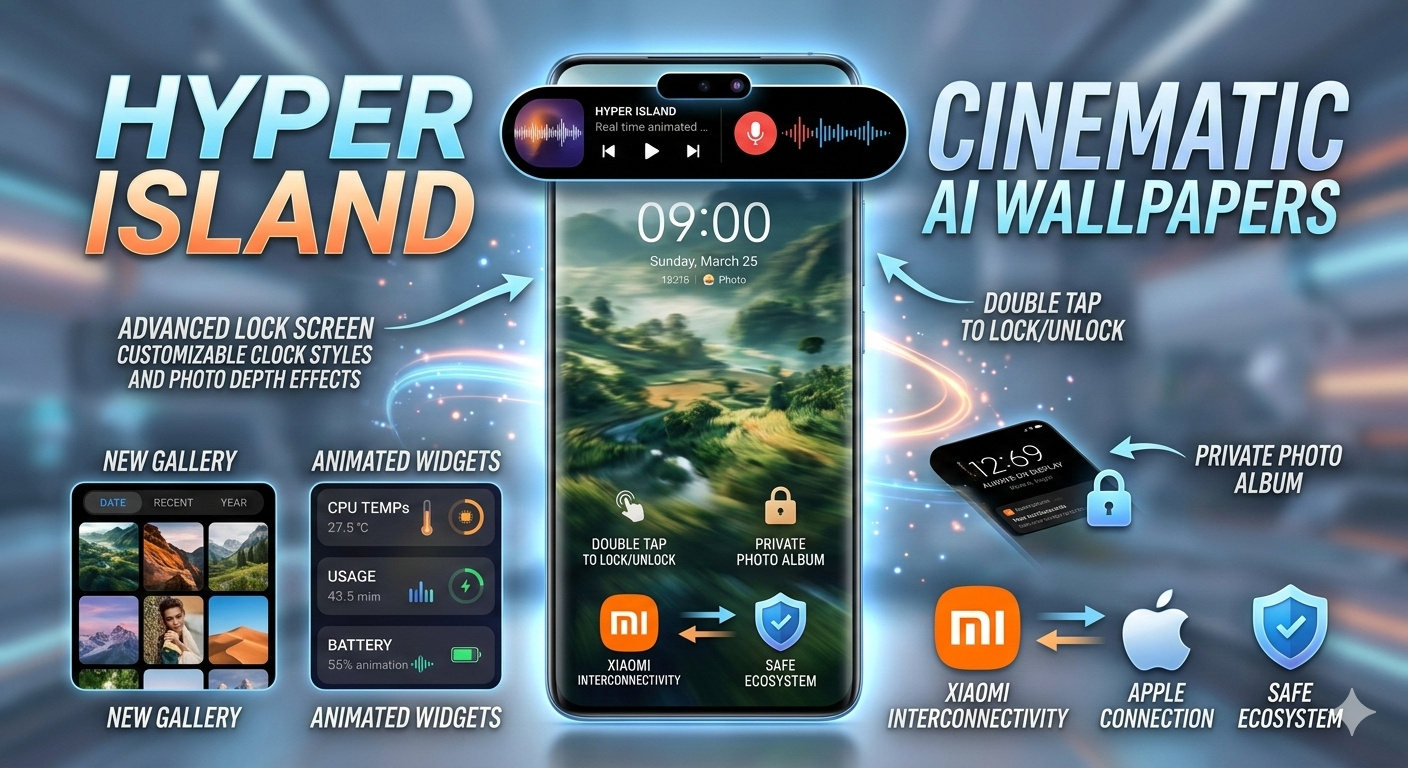
Xiaomi has officially rolled out HyperOS 3, the latest evolution of its unified operating system, and it represents one of the biggest refinements the company has introduced in recent years. With smarter AI integration, deeper customization tools, enhanced privacy controls, and improved ecosystem connectivity, this update is more than just a visual refresh — it’s a functional upgrade.
However, here’s what many users overlook:
Updating your device is only the beginning.
If you don’t manually enable and configure the right settings, you may never experience the full power of HyperOS 3. Out of the box, several advanced features remain underutilized until you activate them yourself.
In this guide, we’ll walk through 10 essential settings you should enable immediately to unlock the complete HyperOS 3 experience.
1️⃣ Hyper Island – Xiaomi’s Smart Notification Experience
One of the most noticeable additions in HyperOS 3 is Hyper Island, Xiaomi’s interactive notification system positioned at the top of the screen.
At first glance, it may remind users of Apple’s Dynamic Island, but Hyper Island operates within Xiaomi’s own ecosystem design language. When you:
- Play music
- Record audio
- Use timers
- Navigate using maps
- Run background apps
A floating, interactive notification element appears at the top of your screen.
Unlike traditional static notifications, Hyper Island displays live updates and allows quick interaction without leaving your current app.
Why It Matters
This feature improves multitasking efficiency. Instead of constantly switching apps or opening the notification panel, you can control active tasks directly from the top interface. It adds a modern, fluid feel to everyday usage.
2️⃣ Cinematic AI Dynamic Wallpapers
HyperOS 3 introduces AI-powered dynamic wallpapers that add motion and depth to your device’s interface.
How to Enable:
Settings → Personalization → AI Dynamic Wallpaper
You can:
- Choose from Xiaomi’s pre-designed cinematic AI wallpapers
- Enter your own prompt to generate custom visuals
- Convert gallery videos into animated AI motion wallpapers
The AI intelligently adds movement effects that feel smooth and immersive. This transforms your lock screen into something more expressive and visually engaging.
For users who enjoy personalization, this is one of the standout upgrades in HyperOS 3.
3️⃣ Advanced Home & Lock Screen Customization
Customization has always been important for Xiaomi users, and HyperOS 3 takes it further.
Navigate to:
Settings → Personalization
Here you’ll find expanded options to:
- Customize lock screen clock styles
- Add personal photos to lock screen layouts
- Adjust font styles
- Switch themes
- Modify display layouts
- Access AI-assisted visual suggestions
This allows you to build a completely unique user interface. Whether you prefer minimal aesthetics or vibrant themes, HyperOS 3 provides the flexibility to match your personality.
4️⃣ New Smart Gallery with Improved Sorting
The redesigned Gallery app focuses heavily on organization and accessibility.
When you open Gallery, you’ll see sorting options at the top, including:
- Sort by Date
- Sort by Recent
- Sort by Year
For users with thousands of photos and videos, this is extremely helpful. Instead of endless scrolling, you can filter content instantly.
Better organization reduces frustration and improves day-to-day usability.
5️⃣ Animated Widgets with Live System Information
Widgets in HyperOS 3 are no longer static visual blocks. They now offer live, animated information.
You can add widgets that display:
- CPU usage
- Device temperature
- Storage capacity
- Battery health
- Performance data
How to Add:
Long press Home Screen → Widgets → Select Animated Widget
These widgets are especially beneficial for users who want real-time system monitoring. They combine functionality with visual appeal, making your home screen both informative and modern.
6️⃣ Xiaomi Interconnectivity (Xiaomi Transfer)
HyperOS 3 strengthens Xiaomi’s ecosystem through its Interconnectivity feature.
The app, available via the Play Store as “Xiaomi Interconnectivity,” allows fast and secure file sharing between compatible devices.
It functions similarly to Nearby Share but is optimized specifically for Xiaomi’s ecosystem.
Key Benefits:
- Fast wireless file transfer
- Encrypted communication
- Stable device pairing
- Reduced transfer corruption
Because it integrates at the system level, the connection is designed to prioritize safety and reliability within Xiaomi devices.
7️⃣ Connect Xiaomi Devices with Apple
Cross-platform compatibility is becoming essential in today’s digital environment. HyperOS 3 supports broader connectivity, including limited interaction with Apple devices through supported methods.
Using the Interconnectivity feature, file sharing between Xiaomi and Apple devices becomes more convenient.
This enhances flexibility for users who operate in mixed-device environments.
8️⃣ Double Tap to Lock & Wake Screen
This simple but practical feature can extend the lifespan of your physical buttons.
Enable it by going to:
Settings → Home Screen → Enable Double Tap to Wake / Lock
You can:
- Double tap the screen to wake it
- Double tap an empty home screen area to lock it
Reducing the need to press the power button frequently helps minimize hardware wear over time.
9️⃣ Always-On Display (AOD)
Always-On Display is particularly useful for professionals, students, and busy users.
To enable:
Settings → Display → Always-On Display
It allows you to quickly check:
- Time
- Notifications
- Battery status
- Calendar alerts
Without unlocking your device.
This improves productivity and ensures you stay informed without interrupting your workflow.
🔟 Private Photo Album (Hidden Gallery)
Privacy remains a top priority for smartphone users.
HyperOS 3 includes a built-in Hidden Gallery feature, eliminating the need for third-party privacy apps.
To activate:
Settings → Search “Hidden Gallery” → Enable
You can:
- Set password protection
- Hide photos and videos
- Secure important documents
This system-level privacy tool ensures sensitive media stays protected within your device.
Why Enabling These Settings Is Important
Many users install updates but never explore the settings menu. As a result, powerful features remain unused.
HyperOS 3 focuses on improving:
- Productivity
- Privacy
- System monitoring
- Personalization
- Ecosystem connectivity
These features are not automatically optimized. Activating them ensures you receive the full benefit of the operating system.

Leave a Reply