Why Manual Recording Is Outdated
In today’s digital world, meetings move quickly. Whether you are attending an online class, joining a business call, or collaborating with a remote team, information moves fast and important points can easily be missed.
Many people still rely on manual recording or handwritten notes during meetings. However, this approach creates several problems. You must remember to start the recording manually, have the correct permissions, and manage storage space for large video files. At the same time, trying to take notes while participating in a discussion can reduce focus and productivity.
For students, IT professionals, and business leaders, missing even a small detail during a meeting can cause confusion later. Important instructions, decisions, or action items may be forgotten.
This is where Fathom transforms the workflow. Instead of manually recording and writing notes, Fathom automates the entire process and allows you to focus fully on the meeting itself.
What Is Fathom and How It Works
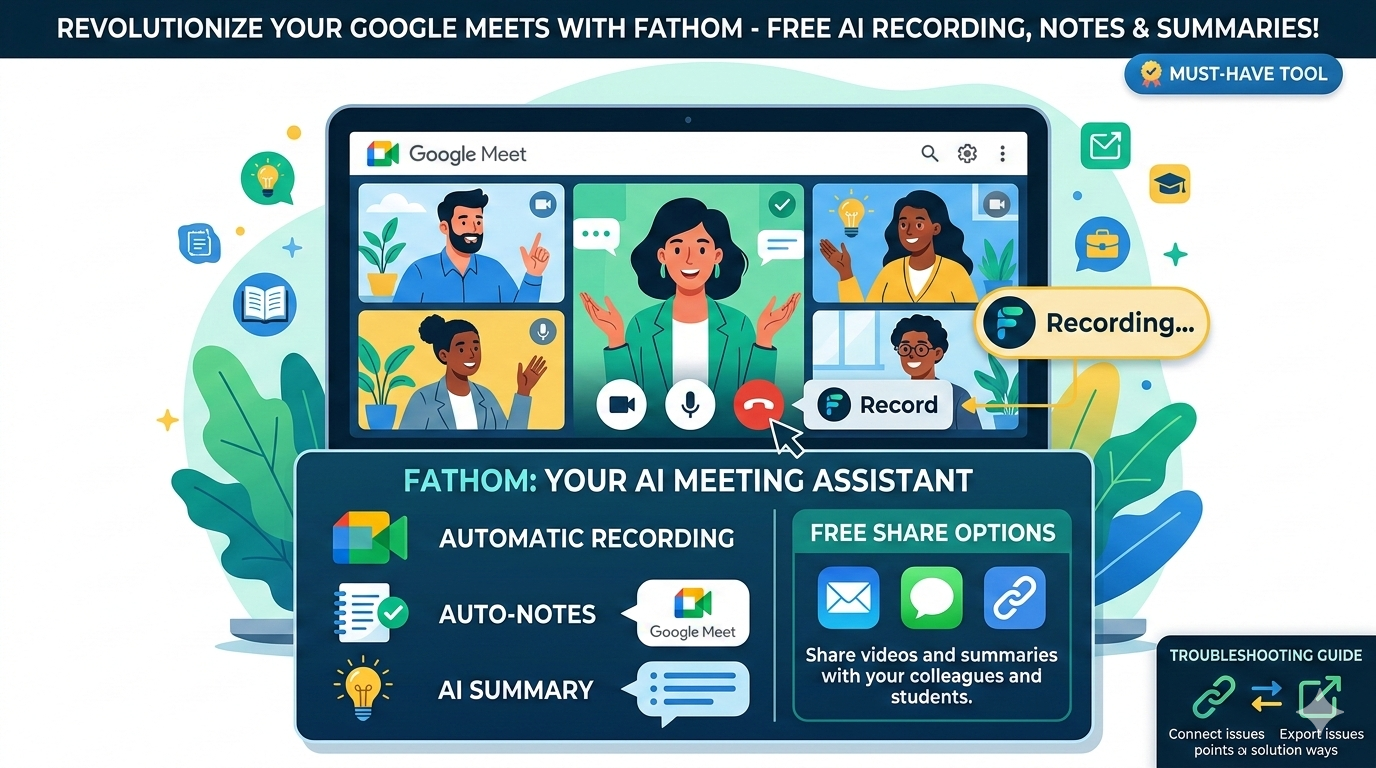
Fathom is a powerful productivity tool that works as a Google Chrome extension. Once installed and connected to your Google account, it integrates directly with Google Meet and automatically manages meeting recordings and notes.
When you start a meeting, Fathom performs several tasks automatically:
- It detects your Google Meet session.
- It joins the meeting silently in the background.
- It records the entire meeting session.
- It generates AI-powered notes during the discussion.
- It creates an instant summary after the meeting ends.
- It allows you to easily share recordings or notes with others.
This automation removes the stress of remembering important details and ensures that everything discussed in the meeting is safely captured.
One of the most impressive features is that Fathom is completely free for individual users, making it a valuable tool for students, freelancers, and professionals.
Step-by-Step Setup Guide (Beginner Friendly)
Setting up Fathom takes only a few minutes and requires no technical knowledge.
Step 1: Install the Extension
First, open the Chrome Web Store and search for the Fathom extension. Once you find it, click “Add to Chrome” to install the extension.
After installation, the extension will appear in your browser toolbar.
Step 2: Connect Your Google Account
Next, sign in using your Gmail account. Fathom will request basic permissions to connect with your Google Meet sessions. Granting these permissions allows the extension to automatically detect meetings and start recording.
This process is quick and secure.
Step 3: Join a Google Meet Session
Once everything is connected, simply open your Google Meet link as usual. Fathom automatically recognizes the meeting and prepares to record it.
When the meeting begins, the extension starts recording and generating notes in the background. There is no need to manually press any record button or configure additional settings.
The entire process runs quietly without interrupting your meeting.
Powerful Features That Make Fathom Stand Out
Fathom offers several productivity features that make it highly valuable for professionals and students.
Automatic Recording Without Host Permission
Unlike the built-in recording feature in Google Meet, which often requires administrator permission, Fathom allows users to record meetings independently. This is extremely useful for freelancers, students, and remote employees who may not have recording privileges.
AI-Generated Smart Notes
Instead of random text notes, Fathom produces structured notes that highlight important parts of the conversation. These include key decisions, questions, action items, and important discussion points.
This feature saves hours of manual note-taking.
Instant Meeting Summaries
After the meeting ends, Fathom automatically generates a short and clear summary. This allows users to quickly review the meeting highlights without watching the entire recording again.
For busy professionals, this feature is extremely valuable.
Easy Sharing Options
Fathom also provides flexible sharing options. Users can share the full recording, send only the meeting summary, or even share specific video clips from the meeting.
This makes it easier to communicate with team members or clients who were unable to attend the meeting.
Unique Productivity Advantages
Many users underestimate the long-term advantages of automated meeting recording tools like Fathom.
Mental Freedom
When users know the meeting is being recorded and summarized automatically, they can focus more on the discussion rather than worrying about writing notes.
Improved Team Accountability
Since summaries clearly list tasks and action items, team members are more accountable for completing their responsibilities.
Personal Communication Improvement
Students and professionals can review recorded meetings to analyze their speaking style, presentation skills, and communication clarity.
Knowledge Archive Creation
Over time, meeting recordings and summaries become a valuable knowledge database that teams can revisit whenever needed.
Common Issues and Troubleshooting Guide
Although Fathom is generally reliable, users may occasionally experience small technical issues.
Problem 1: Connectivity Issues
Common Symptoms
- Recording does not start
- Fathom bot does not join the meeting
- Audio is missing
- Notes generation is delayed
Solutions
Check Internet Stability
Ensure you are using a stable internet connection. A wired connection is recommended for important meetings. Ideally, your internet speed should be at least 10 Mbps.
Restart the Browser
Close unnecessary browser tabs and restart Chrome before joining the meeting.
Update Google Chrome
Outdated browser versions can cause extension conflicts. Go to Chrome Settings and update your browser if needed.
Disable Conflicting Extensions
Screen recording tools or privacy extensions may interfere with Fathom. Temporarily disable other recording extensions.
Reconnect Your Google Account
If the extension fails to connect, log out and log back into your Fathom account.
Problem 2: Export or Import Problems
Common Symptoms
- Video recordings cannot be downloaded
- Notes fail to export as PDF
- Shared links do not open properly
Solutions
Clear Browser Cache
Old cached files may block export functions. Clear your browser cache from Chrome’s privacy settings.
Check Download Permissions
Ensure that your browser allows downloads and pop-ups for the Fathom extension.
Test in Incognito Mode
Open the meeting in Incognito mode with only the Fathom extension enabled to identify extension conflicts.
Use Cloud Sharing Instead of Downloading
Instead of downloading large files, use the shareable link provided by Fathom.
Allow Processing Time
Long meetings require additional processing time before the export option becomes available.
Pro Tips to Avoid Technical Problems
To ensure smooth performance, follow these simple tips:
- Join meetings at least five minutes early.
- Check that the extension is active before the meeting starts.
- Keep Chrome updated regularly.
- Avoid running heavy applications during meetings.
- Use a headset microphone for better audio quality.
Who Should Use Fathom?
Fathom is beneficial for many types of users.
Students can record lectures and review them later for better understanding.
IT professionals can document technical meetings and project discussions.
Business owners can archive strategy sessions and sales meetings.
HR professionals can record interviews and compare candidate responses.
The tool is flexible enough to support a wide variety of professional and educational workflows.
Is Fathom Really Free?
Yes, for individual users the core features of Fathom are completely free. These include automatic recording, AI-generated notes, meeting summaries, and sharing options.
Because of this, it has become one of the most recommended productivity tools for people who frequently use Google Meet.
Is It Worth Using?
The answer is simple: yes.
If you regularly use Google Meet, Fathom can significantly improve your productivity. It helps you save time, reduces the stress of manual note-taking, and ensures that every important detail from your meetings is captured.
Even if small connectivity or export issues occur, they can be easily fixed using the troubleshooting methods explained above.
For students, IT professionals, and business teams, Fathom works as a silent productivity assistant that manages meeting documentation automatically.

Leave a Reply