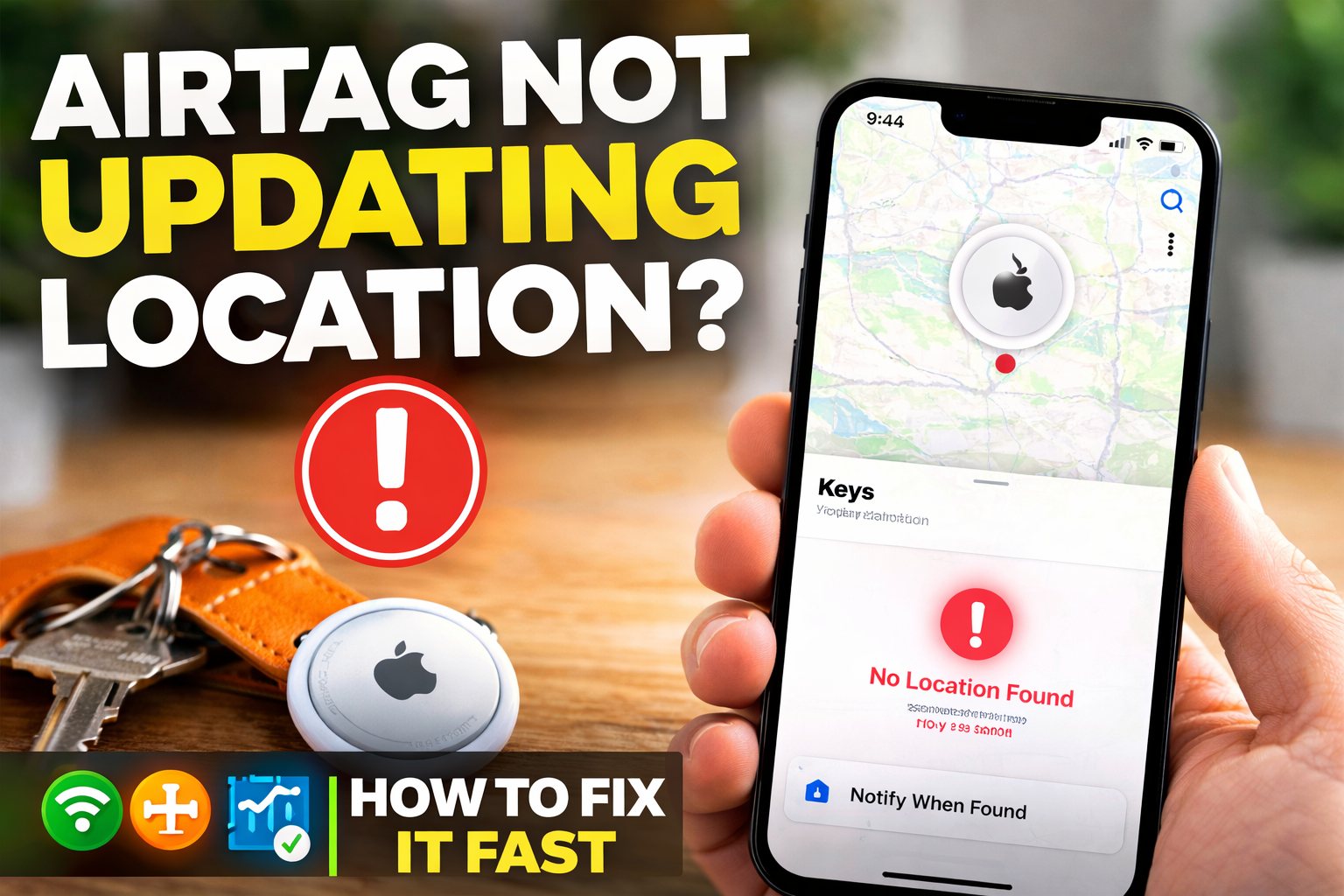
The Apple AirTag is designed to make tracking your personal items easy. Whether you attach it to your keys, bag, or luggage, it works together with your Apple iPhone through the Find My network to help you locate your belongings instantly.
However, many users sometimes face a frustrating issue: the AirTag connects successfully to their iPhone, but the location does not update. Instead of showing the real-time location, the Find My app may display an outdated location or no location information at all.
This can be confusing, especially when you rely on your AirTag to locate important items. The good news is that this issue is usually caused by simple settings or connectivity problems that can be fixed within minutes.
In this guide, we will walk through the most common reasons why AirTag location is not updating and how to fix it step by step.
Why Your AirTag Is Not Updating Its Location
Before jumping into solutions, it helps to understand why this problem happens. The Apple AirTag works using Bluetooth and the Apple Find My network, which relies on nearby Apple devices connected to the internet.
If any part of this system is interrupted, your AirTag might stop updating its location.
Here are some of the most common causes:
• Weak or unstable internet connection
• Airplane mode temporarily blocking network access
• Location services disabled on your device
• Find My settings turned off
• AirTag not refreshing inside the Find My app
• Temporary network glitches on the iPhone
Fortunately, most of these issues can be solved easily.
1: Check Your Internet Connection
The first and most important thing to check is your internet connection. The Find My app requires a stable internet connection to retrieve the latest location of your AirTag.
If your internet connection is slow or unstable, the app may fail to update the location.
How to check your connection
- Open a browser on your Apple iPhone.
- Try loading any website.
- If the page loads slowly or fails to open, your internet connection may be the issue.
You can also try switching between Wi-Fi and mobile data to see which connection works better.
Once your internet connection becomes stable, reopen the Find My app and check if the AirTag location updates.
2: Toggle Airplane Mode to Refresh the Network
Sometimes the network on your Apple iPhone may experience temporary glitches. A quick way to refresh the network is by toggling airplane mode.
This resets your device’s wireless connections and often resolves connectivity issues.
Steps to toggle airplane mode
- Swipe down from the top-right corner of your iPhone screen to open Control Center.
- Tap the Airplane Mode icon to turn it on.
- Wait around 10–15 seconds.
- Tap the icon again to turn airplane mode off.
Once the network reconnects, open the Find My app again and check whether your AirTag location updates.
This quick method solves many temporary network issues.
3: Enable Location Services and Find My Settings
Another common reason your AirTag location may not update is that location services or Find My settings are disabled on your device.
Your Apple AirTag relies on these settings to communicate with the Find My network.
How to check Find My settings
- Open Settings on your Apple iPhone.
- Tap your Apple ID profile at the top of the screen.
- Select Find My.
Inside this menu, make sure the following options are turned on:
• Find My iPhone
• Find My Network
• Share My Location
These features allow your iPhone to participate in the Apple tracking ecosystem, which is essential for AirTag location updates.
If any of these options are disabled, enable them and then check your AirTag again.
4: Verify AirTag in the Find My App
If your settings and internet connection are correct but the location still does not update, the next step is to check your AirTag inside the Find My app.
Sometimes the AirTag may simply need to refresh its connection.
Steps to check your AirTag
- Open the Find My app.
- Tap the Items tab at the bottom.
- Select your AirTag from the list of items.
- Check the location displayed.
If the location shows Last Seen instead of the current location, try moving closer to the AirTag. The app should update its position once the device reconnects.
5: Ensure Bluetooth Is Enabled
Your Apple AirTag communicates with your Apple iPhone using Bluetooth. If Bluetooth is disabled, the device may not be able to connect properly.
Steps to check Bluetooth
- Open Settings on your iPhone.
- Tap Bluetooth.
- Make sure Bluetooth is turned on.
Once enabled, open the Find My app and check if the AirTag location updates.
Quick Fix Summary
If your Apple AirTag is not updating location, these quick solutions usually fix the issue:
✔ Check your internet connection
✔ Toggle airplane mode to refresh the network
✔ Enable Find My settings and location services
✔ Verify AirTag inside the Find My app
✔ Ensure Bluetooth is turned on
Most users find that one of these simple steps restores normal tracking functionality.
Final Thoughts
The Apple AirTag is a powerful tracking device designed to work seamlessly with the Find My ecosystem. When everything is configured correctly, it can help you locate lost items quickly and efficiently.
However, if the AirTag location stops updating, the problem is usually related to network connectivity, location settings, or temporary device glitches on your Apple iPhone.
By checking your internet connection, refreshing your network, enabling the correct settings, and verifying your AirTag inside the Find My app, you can resolve the issue in just a few minutes.
If the problem continues even after trying all these solutions, restarting your iPhone or re-adding the AirTag to your account may also help.
With the correct setup and connectivity, your AirTag should continue providing reliable tracking whenever you need it.

Leave a Reply